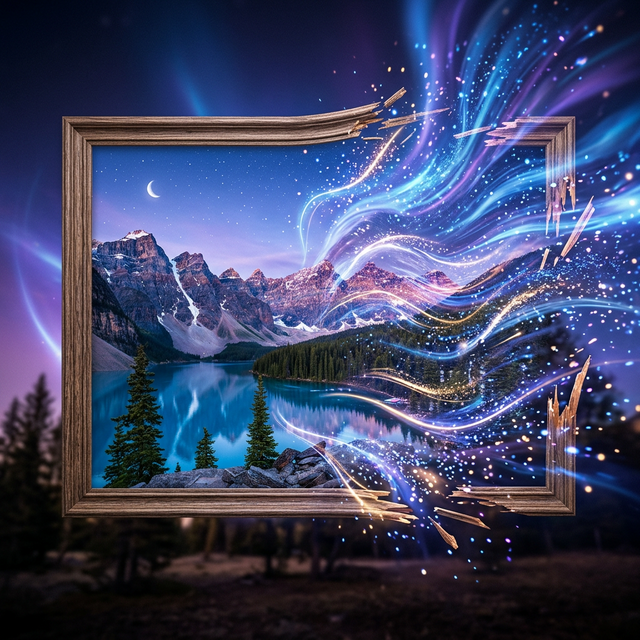
Sora 2's image-to-video feature lets you breathe life into still photographs, turning them into dynamic video clips. Here's how to get the best results.
How It Works
Upload any image as a starting frame, then describe the motion you want to see. Sora 2 analyzes the composition, identifies objects and subjects, and applies realistic motion.
Step-by-Step Guide
- 1Select Image-to-Video mode in the Sora 2 interface
- 2Upload your image — works best with high-resolution photos
- 3Write a motion prompt — describe what should move and how
- 4Set duration — 5-20 seconds
- 5Generate and review
Best Types of Images
- Portraits: "gentle smile forming, hair moving in breeze"
- Landscapes: "clouds drifting, water flowing, trees swaying"
- Product shots: "rotating 360 degrees, studio lighting"
- Architecture: "camera slowly panning across the building"
Pro Tips
- The first frame of the video will match your uploaded image closely
- Simple, clear images work better than busy compositions
- Describe motion relative to the existing scene
- Use "subtle" or "gentle" for more natural-looking movement
Common Use Cases
- Real estate: Animate property photos for listings
- Social media: Turn product photos into engaging video content
- Art: Bring paintings and illustrations to life
- Memory preservation: Animate old family photos
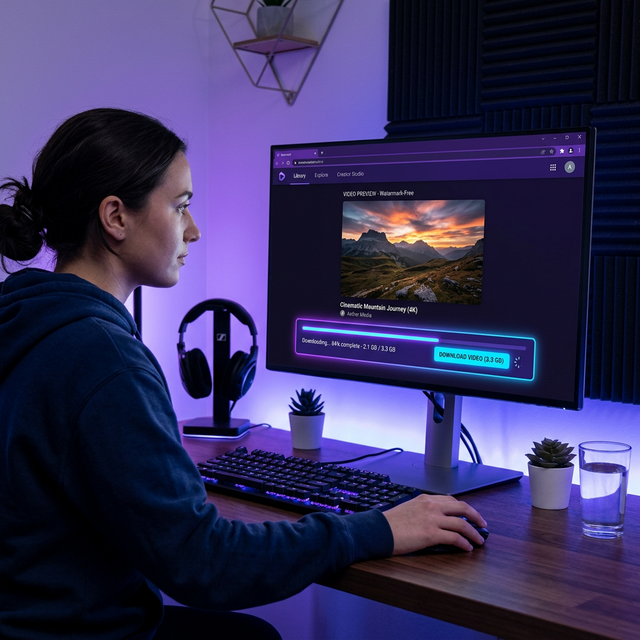
Download your animated images with Soradown to share across platforms.